Google Search Console: Setup & Optimization Guide
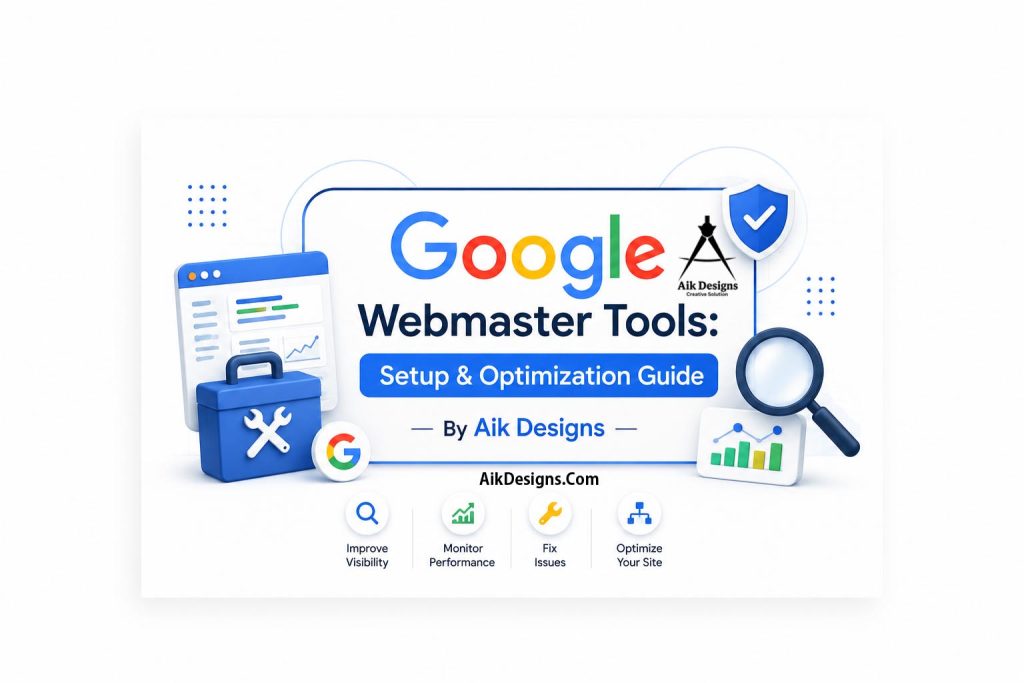
If you want your website to rank on Google — and now, to get pulled into AI Overviews and AI-powered search platforms — Google Webmaster Tools (officially renamed Google Search Console) is the single most important free tool you can set up today. It’s how Google talks to your website: telling you what’s indexed, what’s broken, what people search to find you, and what’s holding your rankings back.
In this complete guide, you’ll learn exactly how to set up Google Search Console from scratch, verify ownership, submit your sitemap, read every major report, fix indexing and Core Web Vitals issues, and use the data to grow organic traffic — including visibility inside Google’s AI Overviews.
📊 Quick Facts: Google Search Console – Google Webmaster Tools
- 🆓 100% free for every website owner
- 🔄 Renamed from “Webmaster Tools” to “Search Console” in 2015
- 📈 Tracks clicks, impressions, CTR, and average position for every query
- 🛠️ Includes URL Inspection, Coverage, Core Web Vitals, and Mobile Usability reports
- 🔗 Shows which sites link back to you
- 🤖 Indexing and structured data here directly affect AI Overview eligibility
📑 Table of Contents
- What Is Google Search Console?
- Why Google Search Console Matters for SEO & AI Search
- How To Set Up Google Search Console (Step-by-Step)
- Google Search Console Dashboard Overview
- Performance Report: Clicks, Impressions, CTR & Position
- URL Inspection Tool
- Coverage / Indexing Report
- Core Web Vitals Report
- Mobile Usability Report
- Links Report: Backlinks & Internal Links
- Security Issues & Manual Actions
- Removals Tool
- Google Webmaster Tools vs Bing Webmaster Tools
- Common Mistakes to Avoid
- Best Practices for AI Search Visibility
- FAQs
- Conclusion
1. What Is Google Search Console?
Google Webmaster Tools is Google’s free platform for monitoring, maintaining, and troubleshooting your website’s presence in Google Search. In 2015, Google rebranded it as Google Search Console, but most site owners — especially in Pakistan, India, and other South Asian markets — still search for it by its original name.
At its core, Google Search Console answers three questions for every page on your site: Is it indexed? How is it performing? What’s broken? Every serious SEO strategy, whether you’re following our Google SEO Guide or building out a full keyword research plan, depends on the data this tool provides.
2. Why Google Search Console Matters for SEO & AI Search
Google Search Console isn’t just a monitoring dashboard — it’s the control panel for your entire organic visibility, including how you show up in Google AI Overview results and the broader Search Generative Experience (SGE).
- Indexing control: Confirms Google can actually find and crawl your pages.
- Keyword intelligence: Reveals the exact queries driving impressions and clicks.
- Technical health: Flags Core Web Vitals, mobile usability, and security problems before they tank rankings.
- AI readiness: Clean indexing and structured data are prerequisites for being cited in AI Overviews.
- Penalty recovery: The only official channel to see and appeal manual actions.
3. How To Set Up Google Search Console (Step-by-Step)
Step 1: Create Your Search Console Property
Go to search.google.com/search-console and sign in with any Google account. Choose between a Domain property (covers all subdomains and protocols, requires DNS verification) or a URL-prefix property (covers one exact URL, offers more verification options).
Step 2: Verify Ownership
Google offers five verification methods:
- HTML file upload — upload a Google-provided file to your root directory
- HTML meta tag — paste a tag into your homepage’s
<head> - DNS TXT record — add a record through your domain registrar (required for Domain properties)
- Google Analytics — instant verification if GA is already installed
- Google Tag Manager — instant verification if GTM is already installed
Step 3: Submit Your Sitemap
Under Sitemaps in the left menu, submit your sitemap URL (typically yourdomain.com/sitemap.xml). This doesn’t guarantee indexing, but it dramatically speeds up discovery of new and updated pages.
Step 4: Set International Targeting (If Needed)
If your site serves a specific country, configure this in your CMS or hreflang tags — Search Console’s old country-targeting setting was retired for URL-prefix properties, so hreflang is now the standard method.
4. Google Search Console Dashboard Overview
Once verified, the left sidebar gives you access to every core report: Performance, URL Inspection, Coverage/Indexing, Sitemaps, Removals, Core Web Vitals, Mobile Usability, Enhancements (structured data), Links, and Security & Manual Actions. The Overview page summarizes all of these at a glance.
5. Performance Report: Clicks, Impressions, CTR & Position
This is the most-used report in Google Search Console. It shows, for any date range up to 16 months:
| Metric | What It Tells You |
|---|---|
| Clicks | How many users clicked through to your site |
| Impressions | How many times your page appeared in results |
| CTR | Click-through rate — clicks divided by impressions |
| Average Position | Your average ranking position for a query |
Filter by query, page, country, device, and search appearance to find low-hanging keyword opportunities — pages ranking on page 2 (positions 11–20) with decent impressions are prime targets for content updates.
6. URL Inspection Tool
Paste any URL from your site into the top search bar to see its exact indexing status, the last crawl date, mobile usability, and any structured data detected. Use “Request Indexing” after publishing or updating a page to nudge Google to recrawl it faster.
7. Coverage / Indexing Report
This report buckets every URL Google has seen into categories:
- Indexed — live in search results
- Excluded — intentionally or unintentionally left out (noindex, duplicates, crawl anomalies)
- Errors — server errors, redirect issues, or blocked resources
- Valid with warnings — indexed but with a flagged issue
8. Core Web Vitals Report
This report groups your URLs by Good, Needs Improvement, or Poor based on Largest Contentful Paint (LCP), Interaction to Next Paint (INP), and Cumulative Layout Shift (CLS). For a full walkthrough of fixing each metric, see our dedicated Core Web Vitals guide.
9. Mobile Usability Report
Flags issues like text too small to read, clickable elements too close together, or content wider than the screen. Since Google uses mobile-first indexing, unresolved mobile usability issues can directly suppress rankings.
10. Links Report: Backlinks & Internal Links
The Links report shows your top linked pages, top linking sites, top linking text, and your internal linking structure. Use it to spot orphaned pages (pages with few or no internal links) and to audit your backlink profile for spammy or toxic links.
11. Security Issues & Manual Actions
This is where Google notifies you of malware, hacked content, or manual action penalties (e.g., unnatural links, thin content, or spam). If you receive one, fix the underlying issue completely, document the fix, and submit a reconsideration request from within this report.
12. Removals Tool
Use this to temporarily hide a URL from Google Search results (for up to 6 months) while you fix or permanently remove the page — useful for accidentally published pages or outdated content pulled down in an emergency.
13. Google Webmaster Tools vs Bing Webmaster Tools
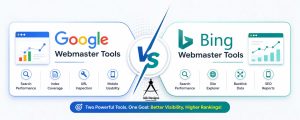
| Feature | Google Search Console | Bing Webmaster Tools |
|---|---|---|
| Search engines covered | Google Search, AI Overviews | Bing, Copilot, Yahoo |
| Sitemap submission | Yes | Yes |
| Instant indexing API | Limited (Indexing API for specific content types) | IndexNow (broad support) |
| Market share priority | Primary for most markets | Secondary, growing via Copilot |
Most sites should treat Google Search Console as the priority setup, then mirror the process using our Bing Webmaster Tools Guide to capture additional traffic and IndexNow-powered fast indexing.
14. Common Mistakes to Avoid
- Verifying only one property version (e.g., https vs http, www vs non-www) instead of using a Domain property
- Ignoring the Coverage report until rankings already drop
- Ignoring “Discovered but not indexed” pages instead of improving content quality
- Ignoring Core Web Vitals warnings on mobile
- Never checking the Links report for toxic backlinks
15. Best Practices for AI Search Visibility
Google Search Console data increasingly influences whether your content is eligible for AI Overviews and other AI search visibility features. Focus on:
- Keeping every important page fully indexed and error-free
- Validating structured data in the Enhancements section
- Passing Core Web Vitals in the “Good” range
- Optimizing content structure for both traditional queries and voice search SEO patterns
❓ Frequently Asked Questions
1. What is Google Search Console?
Google Webmaster Tools, now officially called Google Search Console, is a free tool from Google that lets website owners monitor, maintain, and troubleshoot how their site appears in Google Search results.
2. Is Google Webmaster Tools the same as Google Search Console?
Yes. Google rebranded Google Webmaster Tools as Google Search Console in 2015, but the platform still serves the same core purpose.
3. Is Google Search Console free to use?
Yes, it’s completely free for any website owner, blogger, or business.
4. How do I verify my website in Google Webmaster Tools?
Using an HTML file upload, DNS TXT record, HTML meta tag, Google Analytics, or Google Tag Manager.
5. How long does it take for Google to index a new site?
Anywhere from a few hours to several weeks, depending on site authority, crawl budget, and how often your sitemap updates.
6. Why is my page not indexed in Google Webmaster Tools?
Common causes include noindex tags, blocked robots.txt rules, duplicate content, low-quality pages, or simply not being discovered yet.
7. What is the Performance report used for?
It shows clicks, impressions, CTR, and average position for every query and page, helping you find keyword opportunities.
8. Can Google Webmaster Tools help with AI search visibility?
Yes — clean indexing, structured data, and strong Core Web Vitals directly influence whether your content gets pulled into AI Overviews.
9. What should I do if I get a manual action penalty?
Read the details in the Security & Manual Actions report, fix the violation, then submit a reconsideration request.
10. How often should I check Google Webmaster Tools?
Weekly for active sites, with a deeper monthly review of Performance, Coverage, and Core Web Vitals trends.
11. Does submitting a sitemap guarantee indexing?
No — it only helps Google discover your URLs faster; it doesn’t guarantee crawling or indexing.
12. What’s the difference between Google Webmaster Tools and Bing Webmaster Tools?
Both track indexing and performance, but Google Search Console covers Google Search and AI Overviews, while Bing Webmaster Tools covers Bing, Copilot, and Yahoo.
Conclusion
Google Search Console remains the foundation of any serious SEO Strategy — it’s the only direct line of communication between your website and Google. Set it up correctly, check it weekly, and pair the data with your broader Google SEO strategy, keyword research, and Core Web Vitals fixes to build lasting visibility on both Google and AI-powered search platforms.
About Author