CapCut Guide: Templates, Features And Editing Tips
CapCut has become one of the most-searched video editing apps in the world, and most of that search traffic isn’t people asking “what is CapCut” — it’s people hunting for a specific CapCut template they saw on someone else’s video. This guide covers both sides: how to actually use CapCut if you’re new to it, and how to find, apply, and get more out of CapCut templates, Pro features, and everyday editing tools.
⚡ Quick Facts
📱 Platforms: iOS, Android, Windows, Mac, and CapCut Web (browser)
💰 Cost: Free core app, with an optional CapCut Pro subscription
🎬 Best For: Short-form video for TikTok, Instagram Reels, and YouTube Shorts
🔥 Trending Search: “capcut template” is one of the highest-volume app-related searches, driven largely by trend templates like Healing Thailand
🧩 Standout Feature: One-tap templates that auto-arrange your clips into a pre-edited style
Table Of Contents
- What Is CapCut?
- How To Use CapCut: Step-By-Step
- Understanding The CapCut App Interface
- CapCut Templates: How To Find And Use Them
- Trending CapCut Templates (Including Healing Thailand)
- CapCut Pro Vs Free: What You Actually Get
- CapCut Web: The Browser Version
- Key Editing Features Worth Knowing
- 10 CapCut Tips And Tricks
- CapCut Free Vs Pro Comparison Table
- Frequently Asked Questions
1. What Is CapCut?
Who it’s for: beginners, social media creators, small businesses, and anyone editing short-form video without a professional editing background.
What it is: a free, template-driven video and photo editing app originally built for short-form content.
When to use it: when you need a fast, mobile-first edit rather than a full desktop editing workflow.
Where it works: iOS, Android, Windows, Mac, and directly in a browser via CapCut Web.
Why it’s popular: the template system lets anyone recreate a trending video style in minutes without learning manual editing.
How it works: you import your clips, arrange them on a timeline (or drop them into a template), edit with built-in tools, then export.
2. How To Use CapCut: Step-By-Step
Step 1: Install And Open The App
Download CapCut from the App Store, Google Play, or the official CapCut website for desktop. Open the app and tap “New Project.”
Step 2: Import Your Media
Select photos or video clips from your gallery. You can select multiple clips at once and reorder them before continuing.
Step 3: Edit On The Timeline
Tap any clip on the timeline to trim, split, crop, or adjust speed. Drag clips left or right to reorder them.
Step 4: Add Text, Effects, And Music
Use the bottom toolbar to add text overlays, transitions between clips, filters, effects, and a music track from CapCut’s library or your own audio.
Step 5: Export Your Video
Tap Export, choose your resolution (1080p is usually enough for social platforms) and frame rate, then save or share directly to your preferred app.
3. Understanding The CapCut App Interface
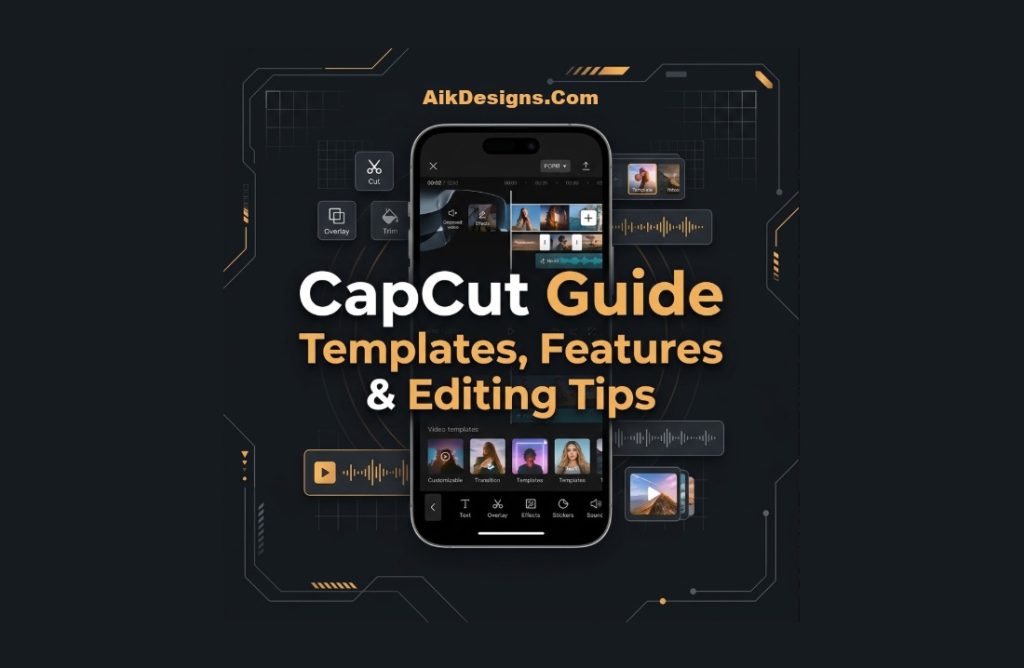
If you’ve never opened CapCut before, the interface has three main zones: the preview window at the top showing your video, the timeline in the middle where clips, text, and audio are arranged in layers, and the toolbar at the bottom where you access editing tools like Trim, Text, Audio, Effects, and Filters. Tapping any clip on the timeline brings up tools specific to that clip.
4. CapCut Templates: How To Find And Use Them
This is what most people are actually searching for. A CapCut template is a pre-built project — transitions, text placement, effects, and timing are already done — and you simply drop your own photos or clips into the placeholders.
Finding A Template
Open the Templates tab from the home screen, then either browse trending categories or search by name (many creators name-drop the exact template they used in their caption, which is how specific templates go viral). You can also tap “See All” to browse the full template library if you’re not looking for anything specific.
Using A Template
Tap a template to preview it, tap “Use Template,” then replace each placeholder slot with your own photo or video clip in the order shown. Adjust timing slightly if a clip feels rushed, then export as usual.
Slow Motion Templates
For a cinematic, slowed-down feel, search “slow motion” inside the Templates tab. These templates automatically apply speed ramping to your clips instead of you having to manually adjust speed on each one.
5. Trending CapCut Templates (Including Healing Thailand)
Template trends move fast, but a few patterns repeat: travel-recap templates, “old vs new” transformation templates, and calm aesthetic templates built around a specific song.
Healing Thailand CapCut Template
The “Healing Thailand” template is a travel-recap style built around calm transitions and a soft, cinematic music track, popularized by creators documenting Thailand trips. It works well for any slow-paced travel or lifestyle recap, not just Thailand footage — the name simply reflects where the trend started.
How To Keep Up With New Trends
Check the Templates tab’s “New” or “Trending” filter regularly, since templates go viral and fade within days or weeks. If you spot a template style in someone else’s video, most creators tag the template name in their caption or comments.
6. CapCut Pro Vs Free: What You Actually Get
CapCut’s core editing tools — trimming, text, transitions, basic effects, and most templates — are free with no watermark. CapCut Pro is a subscription layer on top, not a requirement to edit.
What CapCut Pro Adds
- Access to exclusive premium templates and effects packs
- Extra fonts and text styles
- Faster cloud-based rendering and export
- Additional cloud storage for projects
- Priority access to newly released AI editing tools
7. CapCut Web: The Browser Version
CapCut Web lets you edit directly in a browser at the official CapCut website without installing anything, which is useful on a shared or work computer where you can’t install software. It includes most of the same timeline editing tools as the desktop app, though some mobile-exclusive effects and templates may not be available yet on web.
8. Key Editing Features Worth Knowing
Background Removal And Green Screen
Select a clip, tap Cutout, then choose Background Removal for automatic subject detection, or Chroma Key if you filmed against a real green screen.
Keyframes
Keyframes let you animate a clip’s position, scale, or rotation over time — tap the small diamond icon on the clip’s toolbar to set a keyframe at different points on the timeline.
Auto Captions
Tap Text, then Auto Captions, select your spoken language, and CapCut generates synced captions you can restyle, animate, or edit for accuracy.
Transitions
Tap the small icon between two clips on the timeline to open the transitions menu, where you can preview and apply cuts, fades, or motion-based transitions.
9. 10 CapCut Tips And Tricks
- Use “Match Cut” style transitions to sync cuts precisely to a music beat.
- Enable “Beat Sync” so CapCut automatically marks your track’s beats for you to cut on.
- Duplicate a project before heavily editing it, so you always have an unedited backup.
- Use the Curve Speed tool instead of flat speed for smoother slow-motion ramps.
- Group text and stickers using the “Link” feature so they move together with a clip.
- Use “Adjust” on individual clips rather than a global filter for more natural color matching across clips shot in different lighting.
- Save frequently used text styles as a favorite so you don’t rebuild them every project.
- Lower the export frame rate to 30fps for static talking-head content to reduce file size without visible quality loss.
- Use the built-in stabilization tool on shaky handheld footage before applying other effects.
- Clear the app’s cache periodically (Settings > Clear Cache) if exports start slowing down.
10. CapCut Free Vs Pro Comparison Table
| Feature | Free | CapCut Pro |
| Core editing tools | ✅ Full access | ✅ Full access |
| Standard templates | ✅ Yes | ✅ Yes |
| Premium templates & effects | ❌ No | ✅ Yes |
| Watermark on export | ❌ None | ❌ None |
| Cloud rendering speed | Standard | Faster |
| Cloud storage | Limited | Expanded |
| Cost | Free | Paid subscription |
Frequently Asked Questions
1. What is CapCut used for?
CapCut is used to edit short-form videos — trimming clips, adding text, transitions, music, and templates for platforms like TikTok, Instagram Reels, and YouTube Shorts.
2. How does CapCut work?
You import clips onto a timeline, edit them with built-in tools or drop them into a ready-made template, then export the finished video.
3. Is CapCut free to use?
Yes, the core app and most templates are free. CapCut Pro is an optional paid tier for premium extras.
4. How do I use a CapCut template?
Open the Templates tab, find one you like, tap Use Template, and replace the placeholder clips with your own media.
5. What is the Healing Thailand CapCut template?
It’s a trending travel-recap template with calm transitions and cinematic music, originally popularized by Thailand travel content.
6. Can I use CapCut on a computer?
Yes — CapCut has downloadable Windows and Mac apps, plus a browser-based CapCut Web version.
7. Does CapCut have a watermark?
No, current free exports do not include a watermark.
8. How do I remove the background in CapCut?
Select the clip, tap Cutout, then choose Background Removal or Chroma Key if you used a green screen.
9. How do I add auto captions in CapCut?
Tap Text > Auto Captions, select your video’s language, and CapCut generates synced captions automatically.
10. Why is my CapCut export slow or failing?
It’s usually low storage, too many stacked effects, or an outdated app version — clearing cache and updating CapCut usually resolves it.
11. What is CapCut Pro?
A paid subscription adding premium templates, effects, fonts, faster rendering, and extra cloud storage on top of the free version.
12. Where can I find CapCut templates directly?
Inside the app’s Templates tab — search by name or browse trending and new template categories.
Conclusion
Whether you came here to learn CapCut from scratch or just wanted to figure out how to use a trending template like Healing Thailand, the workflow is the same: import your clips, let the tool (or template) handle the heavy lifting, and export. If you’re building out a full content workflow, check out our guide on turning YouTube videos into transcripts for repurposing long-form content into short clips, or our Remaker AI photo and video editing guide for more creative editing tools.
About Author