MBR Vs GPT: Which Is Better For SSD, HDD & Windows 11
When you add a new HDD or SSD to your computer, Windows asks you to initialize the disk and gives you two choices: MBR (Master Boot Record) or GPT (GUID Partition Table). Most people have no idea which one to pick, and the wrong choice can lead to a 2 TB size limit, a PC that will not boot, or the dreaded “Windows cannot be installed to this disk” error.
This Aik Designs blogs guide explains MBR vs GPT in plain language: what each one is, the real differences, which is better for SSD, HDD, USB, Windows 10 and Windows 11, how to check your current disk, and how to convert between the two safely. Updated October 2026.
Quick Answer: Choose GPT if your PC supports UEFI, your disk is larger than 2 TB, you need more than 4 partitions, or you are installing Windows 11. Choose MBR only for Legacy BIOS-only computers, 32-bit Windows, or very old operating systems.
📑 Table Of Contents
- What Is MBR And GPT?
- MBR Vs GPT At A Glance: Who, What, When, Where, Why And How
- MBR Vs GPT Comparison Table
- MBR Vs GPT Differences Explained
- MBR Or GPT: Which Is Better?
- MBR Or GPT For SSD
- MBR Or GPT For Windows 11 And Windows 10
- MBR Or GPT For USB And External Drives
- How To Check If Your Disk Is MBR Or GPT
- How To Initialize A Disk To MBR Or GPT
- How To Convert MBR To GPT Without Data Loss
- How To Convert GPT To MBR
- Fix: Windows Cannot Be Installed To This Disk
- Common MBR And GPT Mistakes To Avoid
- People Also Search For
- MBR Vs GPT FAQ
- Bottom Line
1. What Is MBR And GPT?
MBR stands for Master Boot Record and GPT stands for GUID Partition Table. Both are partitioning schemes for HDDs, SSDs and removable devices. They do the same basic job: they record how partitions are created and organized on a disk. They just do it in very different ways.
GPT Is Not ChatGPT: If you searched “MBR vs GPT” and landed here, note that this GPT is the disk GUID Partition Table. It has nothing to do with ChatGPT or AI language models.
What Is MBR (Master Boot Record)?
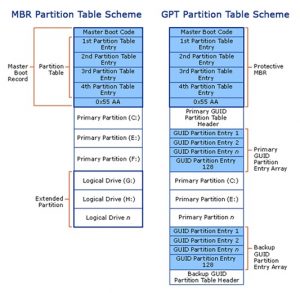
MBR was introduced with IBM PC DOS 2.0 in March 1983 and is still in use today. It stores a small piece of boot code, a partition table and a disk signature in the very first sector of the disk. The partition table has room for only 4 primary partition entries in Windows.
What Is GPT (GUID Partition Table)?
GPT was developed in the late 1990s as part of the UEFI standard (the modern replacement for BIOS) and has become the default in recent years. It keeps a protective MBR, a primary GPT header, a primary partition entry array, plus a backup partition entry array and backup header at the end of the disk. A GPT disk can hold up to 128 partition entries in Windows.
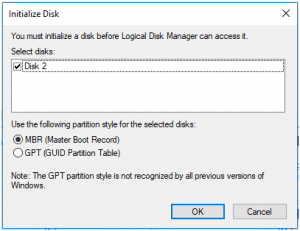
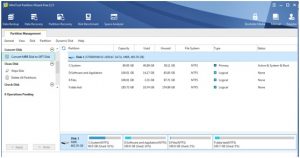
To see which scheme a disk uses, you can use a free tool like MiniTool Partition Wizard, which explores disk and partition properties and can initialize disks to MBR or GPT. Launch it and the main window shows every disk and its partition style:
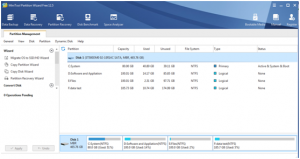
In the example above, the computer has just one disk and it uses MBR.
2. MBR Vs GPT At A Glance: Who, What, When, Where, Why And How
- Who needs to choose? Anyone adding a new HDD or SSD, installing Windows, building a PC, or preparing a USB or external drive.
- What is the choice? MBR (older, limited, Legacy BIOS) or GPT (modern, large-disk, UEFI).
- When does it matter? When you initialize a new disk, install or reinstall Windows, upgrade to Windows 11, or use a disk bigger than 2 TB.
- Where do you set it? In Windows Disk Management, diskpart, the Windows setup screen (Shift+F10), or a partition tool such as MiniTool Partition Wizard.
- Why does it matter? The partition style decides the disk size you can use, how many partitions you can create, and whether Windows can boot.
- How do you pick? Match the disk style to your boot mode: UEFI boots from GPT, Legacy BIOS boots from MBR.
3. MBR Vs GPT Comparison Table
| Feature | MBR | GPT |
|---|---|---|
| Full Form | Master Boot Record | GUID Partition Table |
| Introduced | 1983 (IBM PC DOS 2.0) | Late 1990s, part of UEFI |
| Max Disk Size | 2 TB (512-byte sectors) or 16 TB (4Kn sectors) | About 9.4 ZB in theory; far beyond any real disk |
| Max Partitions | 4 primary (or 3 primary + 1 extended with logical drives) | 128 in Windows |
| Boot Mode | Legacy BIOS (CSM) | UEFI |
| Windows 11 | Not supported for the system disk | Required (with UEFI) |
| Data Protection | Single copy of partition table, no checksum | Backup partition table plus CRC32 integrity checks |
| 32-Bit Windows | Supported | Data only, cannot boot |
| Best For | Old PCs, Legacy BIOS, Windows XP and 32-bit systems | Modern PCs, SSDs, large HDDs, Windows 10 and 11 |
4. MBR Vs GPT Differences Explained
1. They Were Introduced At Different Times
MBR arrived in 1983 and survived for decades. GPT came from the late-1990s EFI work that became UEFI, and only became mainstream in recent years as UEFI motherboards replaced BIOS ones.
2. They Have Different Structures
MBR has just three parts: master boot code, a partition table and a disk signature. GPT is more elaborate. It has a protective MBR that stops old MBR-based utilities from mistaking a GPT disk for an empty one and overwriting it, a primary GPT header recording its own location and the location of the backup header, a primary partition entry array, a backup partition entry array and a backup header.
3. Partition Count Is Different
An MBR disk allows only 4 primary partitions. To create more you must make an extended partition that holds logical partitions, and a logical partition cannot be set active. A GPT disk theoretically allows almost unlimited partitions, but Windows limits it to 128, and each GPT partition behaves like a primary partition.
4. Disk And Partition Size Limits Are Different
With MBR you can only use 2 TB of a disk that has traditional 512-byte sectors, however big the disk is. If the disk uses 4Kn (4K native) sectors you can use 16 TB. GPT uses 64-bit addressing (2^64 logical blocks), so the limit is not a practical concern for any disk that exists today.
2 TB Trap: If you initialize a 4 TB or 8 TB drive as MBR, Windows will only let you use about 2 TB and the rest shows as unallocated space that you cannot use. Initialize large drives as GPT from the start.
5. Compatibility Is Different
All current Windows versions (Windows 7, 8, 10, 11 and the matching Windows Server editions) can read GPT disks for data. But only 64-bit versions can boot from a GPT disk, and only when UEFI boot mode is supported and enabled. The 32-bit version of Windows XP sees only the protective MBR, and even 64-bit XP can use a GPT disk for data only. Macs use GPT, and Linux supports both.
6. Boot Mode Is Different
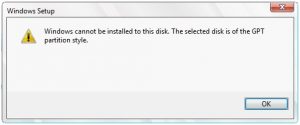
If your motherboard supports Legacy boot only, Windows can only boot from MBR. Trying to install Windows on a GPT disk in that mode gives the error “Windows cannot be installed to this disk. The selected disk is of the GPT partition style.”
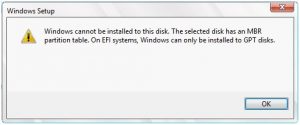
The reverse is also true. If your system boots in UEFI mode only, Windows can only start from GPT, and installing on MBR gives “Windows cannot be installed to this disk. The selected disk has an MBR partition table. On EFI systems, Windows can only be installed to GPT disks.”
Luckily, most current motherboards support both Legacy and UEFI. You can enable UEFI to boot from GPT, or enable CSM (Compatibility Support Module) or Legacy mode to boot from MBR. Very old boards, for example the Gigabyte GA-P35-DS3 covered in our 35-ds3chipdus3 install and specs guide, are Legacy BIOS only and cannot use UEFI at all.
7. Data Protection Is Different
MBR stores its partition table in one place. If that sector is damaged, the partitions can become unreadable. GPT keeps a primary and a backup partition table and uses CRC32 checksums, so it can detect corruption and recover from the backup copy.
5. MBR Or GPT: Which Is Better?
In general GPT is better, but the right choice depends on your hardware. Use this checklist:
| Your Situation | Best Choice | Why |
|---|---|---|
| Need more than 4 partitions | GPT | MBR stops at 4 primary partitions; GPT allows 128 in Windows |
| Disk larger than 2 TB | GPT | MBR can only use 2 TB (16 TB with 4Kn sectors) |
| Care about data safety | GPT | Backup table and CRC32 checks protect the partition data |
| System disk and UEFI is supported | GPT | UEFI boot with GPT is faster and more stable; needed for Windows 11 |
| Motherboard has Legacy BIOS only | MBR | Windows can only boot from MBR in Legacy mode |
| Installing 32-bit Windows | MBR | Only 64-bit Windows can boot from GPT |
| Running Windows XP or older | MBR | Older systems can only boot from MBR, even in 64-bit |
Rule Of Thumb: Match the disk to the boot mode. UEFI + GPT or Legacy BIOS + MBR. Mixing them is what causes most “Windows cannot be installed to this disk” errors.
6. MBR Or GPT For SSD
For an SSD, choose GPT if your computer supports UEFI. Neither style changes how fast an SSD reads or writes, but GPT lets you use SSDs larger than 2 TB, create more partitions and boot through UEFI, which is usually quicker to start than Legacy BIOS.
Pick MBR for an SSD only if it will be your Windows boot drive on a Legacy-BIOS-only PC. If the SSD is just extra storage, GPT works on any modern Windows PC.
7. MBR Or GPT For Windows 11 And Windows 10
MBR Or GPT For Windows 11
Windows 11 needs a UEFI-capable PC, and Windows boots from GPT in UEFI mode, so the Windows 11 system disk should be GPT. If your PC currently uses MBR with Legacy BIOS, you can convert the disk with MBR2GPT (covered below) and then switch the firmware to UEFI. If setup says your PC cannot run Windows 11, see our guide to fixing the “This PC can’t run Windows 11” error.
MBR Or GPT For Windows 10
Windows 10 runs on both. Use GPT with UEFI on any PC from the last decade, and MBR only on Legacy BIOS boards or 32-bit installs. Windows 10 reached end of support in October 2025, so converting to GPT is also the first step if you plan to upgrade to Windows 11. If Windows behaves oddly after a disk change, our Windows 10 Start menu not working fix may help.
8. MBR Or GPT For USB And External Drives
For a USB flash drive or external hard drive used for storage on modern PCs, either style works under 2 TB, and GPT is required above 2 TB. Some older devices (certain TVs, car stereos and older consoles) only read MBR disks formatted as FAT32, so check the device manual before choosing.
When you create a Windows installer USB with a tool like Rufus, choose the partition scheme that matches the target PC: MBR for Legacy BIOS, GPT for UEFI.
If Windows says a drive cannot be accessed or shows an error after you change the partition style, read our fix for “The Parameter Is Incorrect” in Windows.
9. How To Check If Your Disk Is MBR Or GPT
Method 1: Disk Management
- Press Win + X and open Disk Management.
- Right-click your disk (for example Disk 0) on the left side and click Properties.
- Open the Volumes tab and read Partition style. It shows either Master Boot Record (MBR) or GUID Partition Table (GPT).
Method 2: PowerShell
Open PowerShell as administrator and run:
Get-Disk | Select-Object Number, FriendlyName, PartitionStyleMethod 3: Diskpart
diskpart
list disk
In the results, a disk with an asterisk (*) under the Gpt column is GPT. No asterisk means MBR.
10. How To Initialize A Disk To MBR Or GPT
Initializing a brand-new disk is easy and can be done in Windows Disk Management or MiniTool Partition Wizard.
In Disk Management
- Press Win + R, type diskmgmt.msc and press Enter.
- A prompt asks you to initialize the newly added disk. Choose MBR or GPT.
- Click OK, then right-click the unallocated space and choose New Simple Volume to create a partition.
In MiniTool Partition Wizard
MiniTool Partition Wizard initializes a new disk to MBR by default. To use GPT, select the disk and choose Initialize to GPT Disk or Convert MBR Disk to GPT Disk from the left action panel, then click Apply.
11. How To Convert MBR To GPT Without Data Loss
Back Up First: Even though these methods are designed to keep your files, always back up important data before changing a partition style. A power cut mid-conversion can leave a disk unreadable.
Method 1: MBR2GPT (Built Into Windows 10 And 11)
MBR2GPT is Microsoft’s own tool for converting a system disk without deleting files. It needs Windows 10 version 1703 or later, and the disk must have no more than 3 primary partitions and no extended or logical partitions. See Microsoft’s MBR2GPT documentation for the full requirements.
- Open Command Prompt as administrator.
- Validate the disk (replace 0 with your disk number):
mbr2gpt /validate /disk:0 /allowFullOS - If validation passes, convert it:
mbr2gpt /convert /disk:0 /allowFullOS - Restart, enter the BIOS and switch the boot mode from Legacy/CSM to UEFI. Enable Secure Boot if you plan to run Windows 11.
Do Not Skip The Last Step: After MBR2GPT finishes, Windows will not boot until you switch the firmware to UEFI mode.
Method 2: MiniTool Partition Wizard
Select the MBR disk, click Convert MBR Disk to GPT Disk in the left panel, then click Apply. This works for both data disks and system disks, and you still need to enable UEFI afterwards for a system disk.
12. How To Convert GPT To MBR
Windows Disk Management only offers Convert to MBR Disk on an empty disk, so it deletes everything. With diskpart the steps are:
diskpart
list disk
select disk 1
clean
convert mbr
Data Loss: The clean command erases all partitions and data on the selected disk. Double-check the disk number with list disk first, and never run it on your Windows disk by mistake.
To keep your files, back up the disk first or use a third-party tool that supports converting a data disk from GPT to MBR without erasing it.
13. Fix: Windows Cannot Be Installed To This Disk
| Error Message | Cause | Fix |
|---|---|---|
| The selected disk is of the GPT partition style | PC is booted in Legacy BIOS mode but the disk is GPT | Switch the BIOS to UEFI (best), or erase and convert the disk to MBR |
| The selected disk has an MBR partition table. On EFI systems, Windows can only be installed to GPT disks | PC is booted in UEFI mode but the disk is MBR | Convert the disk to GPT, or switch the BIOS to Legacy/CSM mode |
On the Windows setup screen press Shift + F10 to open Command Prompt, then use diskpart (clean, then convert gpt or convert mbr) on a disk with no data you need. If your motherboard supports only one boot mode, there are more solutions in Windows Cannot Be Installed to a Disk? Here Are Solutions.
14. Common MBR And GPT Mistakes To Avoid
- Initializing a 4 TB or larger drive as MBR and losing access to the extra space.
- Converting a Windows disk to GPT with MBR2GPT and forgetting to switch the BIOS to UEFI.
- Running clean in diskpart on the wrong disk number.
- Installing a 32-bit version of Windows on a GPT disk.
- Skipping a backup before converting.
- Mixing GPT with Legacy BIOS or MBR with UEFI and then blaming the SSD.
15. People Also Search For
16. MBR Vs GPT FAQ
Q1. What Is The Difference Between MBR And GPT?
MBR (Master Boot Record) is the older partitioning scheme from 1983. It supports up to 4 primary partitions, disks up to 2 TB (with 512-byte sectors) and Legacy BIOS boot. GPT (GUID Partition Table) is the modern scheme. It supports up to 128 partitions in Windows, disks far larger than 2 TB, UEFI boot, and keeps a backup copy of the partition table.
Q2. Which Is Better, MBR Or GPT?
For almost every modern PC, GPT is better. It supports larger disks, more partitions, UEFI boot and better data protection. MBR is only the better choice when your computer supports Legacy BIOS only, when you are installing 32-bit Windows, or when you are running a very old operating system such as Windows XP.
Q3. Should I Use MBR Or GPT For An SSD?
Use GPT for an SSD if your PC supports UEFI, and always use GPT if the SSD is larger than 2 TB. MBR and GPT do not change the raw speed of an SSD. Choose MBR for an SSD only if the computer has Legacy BIOS only and you want to boot Windows from that SSD.
Q4. Is MBR Or GPT Required For Windows 11?
Windows 11 requires a UEFI-capable system, and Windows boots from a GPT disk in UEFI mode. So the Windows 11 system disk should be GPT. An MBR disk with Legacy BIOS does not meet the requirement, but you can convert it to GPT with the built-in MBR2GPT tool and then switch the firmware to UEFI.
Q5. Should I Use MBR Or GPT For Windows 10?
Windows 10 works with both. Use GPT with UEFI on any PC made in the last decade for better security features and larger disk support. Use MBR only when your motherboard is Legacy BIOS only or you are installing the 32-bit version of Windows 10.
Q6. Can I Convert MBR To GPT Without Losing Data?
Yes. Windows 10 (version 1703 and later) and Windows 11 include the MBR2GPT command, which converts a disk without deleting files. Third-party tools such as MiniTool Partition Wizard can also convert MBR to GPT without data loss. Always back up important files first, because a power cut or error during conversion can corrupt a disk.
Q7. Can I Convert GPT To MBR Without Losing Data?
Windows Disk Management and the diskpart convert mbr command only work on an empty disk, so they erase everything on it. To keep your data, back it up first, or use a trusted third-party partition tool that supports converting a data disk from GPT to MBR.
Q8. Is GPT Faster Than MBR?
The partition style itself does not make reads and writes faster. The speed advantage people notice comes from UEFI boot, which usually starts Windows faster than Legacy BIOS, and GPT is what UEFI boots from. For a data-only disk there is no real performance difference.
Q9. What Does GPT Stand For In Disk Partitioning? Is It ChatGPT?
In disk partitioning, GPT stands for GUID Partition Table. It has nothing to do with ChatGPT or the GPT language models used in AI. GUID stands for Globally Unique Identifier, which is how each partition on a GPT disk is labelled.
Q10. How Do I Check Whether My Disk Is MBR Or GPT?
Open Disk Management, right-click the disk (for example Disk 0), choose Properties, open the Volumes tab and read the Partition style field. You can also run Get-Disk in PowerShell and read the PartitionStyle column, or run list disk in diskpart and look for an asterisk in the Gpt column.
Q11. Can Windows Boot From A GPT Disk In Legacy BIOS Mode?
No. Windows can only boot from a GPT disk when the firmware is in UEFI mode. In Legacy BIOS mode Windows must be on an MBR disk. Many modern motherboards offer both modes, so you can switch to UEFI in the BIOS settings, or enable CSM if you need Legacy support.
Q12. Should I Use MBR Or GPT For A USB Drive Or External Hard Drive?
For a USB drive or external hard drive used only for storage on modern computers, GPT is fine and is required above 2 TB. Some older devices, such as certain TVs, car stereos and older consoles, only read MBR disks with FAT32. If you are making a Windows installer USB, pick the scheme that matches the target PC’s boot mode (MBR for Legacy BIOS, GPT for UEFI).
17. Bottom Line
For nearly every modern computer the answer to MBR vs GPT is simple: use GPT with UEFI. It handles disks over 2 TB, supports up to 128 partitions in Windows, protects the partition table with a backup, and is required for Windows 11. Keep MBR for old Legacy-BIOS-only PCs, 32-bit Windows and legacy devices.
Check your current disk style, back up your files, and convert only when you need to. If you need help with a disk, Windows install or website issue, contact Aik Designs or explore more guides in our Technology section.
About Author