Complete Guide To Fixing 404, 403, 500 And Other Website Errors
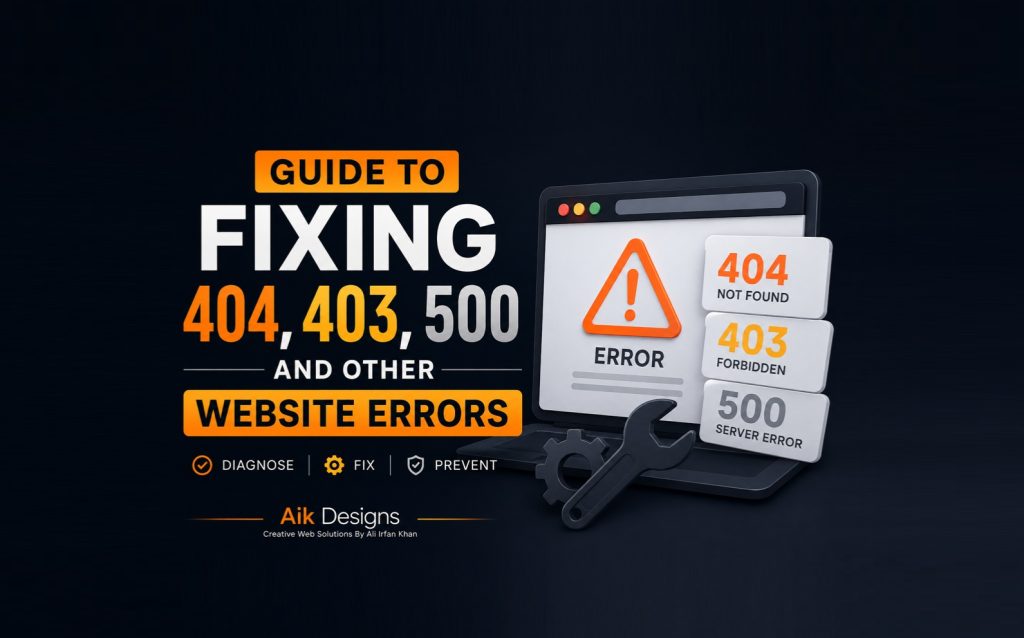
If you have ever seen a 403 Forbidden error pop up in your sitemap, or watched a page vanish behind a 404 Not Found, you already know how much panic a single error code can cause. The good news? Almost every website error follows a predictable pattern — and once you know what each code means, fixing it takes minutes, not hours.
In this Aik Designs Blogs guide, we cover every major HTTP status code your website is likely to throw — from client-side errors like 400 and 403, to server-side failures like 500 and 503, to the sitemap-specific errors that trip up Google Search Console. For each one, you’ll get the exact cause and the exact fix.
⚡ Quick Facts
🔢 12+ HTTP status codes explained in this guide
🛠️ Step-by-step fix included for every single error
🗺️ Dedicated section for sitemap and Google Search Console errors
📊 Comparison table for quick reference
Table Of Contents
- What Are HTTP Status Codes
- 400 Bad Request
- 401 Unauthorized
- 403 Forbidden
- 404 Not Found
- 405 Method Not Allowed
- 429 Too Many Requests
- 500 Internal Server Error
- 502 Bad Gateway
- 503 Service Unavailable
- 504 Gateway Timeout
- Sitemap-Specific Errors In Google Search Console
- Comparison Table Of All Error Codes
- How To Monitor Errors Going Forward
- Frequently Asked Questions
What Are HTTP Status Codes
What they are: three-digit codes a server sends back with every page request, telling the browser or crawler what happened. Why they matter: search engines like Google use these codes to decide whether to index, ignore, or drop a page. Who should care: anyone running a website, since a single misconfigured error page can quietly block traffic or crawling. When to check them: after every migration, plugin update, or hosting change. Where to see them: your browser’s developer tools, Google Search Console, or server logs. How they’re grouped: 4xx codes mean the problem is on the visitor/request side, while 5xx codes mean the problem is on the server side.
400 Bad Request

A 400 error means the server could not understand the request because of malformed syntax — often a broken URL, corrupted cookies, or an oversized file upload.
Steps To Fix A 400 Bad Request Error
- Clear your browser cache and cookies, then reload the page.
- Check the URL for stray characters, especially in search or filter parameters.
- If uploading a file, confirm it is within your server’s upload size limit.
- Test the same URL in an incognito window to rule out browser extensions.
401 Unauthorized

A 401 error appears when a page requires login credentials that were not supplied or have expired — common on staging sites, member areas, and password-protected directories.
Steps To Fix A 401 Unauthorized Error
- Confirm the correct username and password are being used.
- Check if an .htpasswd or authentication plugin is misconfigured.
- Make sure the page is not accidentally password-protected in WordPress settings.
- Verify API keys or tokens haven’t expired if the error is on an API endpoint.
403 Forbidden
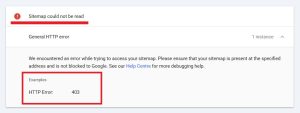
A 403 error means the server understood the request but is refusing to fulfill it. This is the error that most often shows up unexpectedly in sitemaps, plugin folders, or after a security plugin update.
Steps To Fix A 403 Forbidden Error
- Check file and folder permissions — they should typically be 644 for files and 755 for folders.
- Review your .htaccess file for incorrect Deny or RewriteRule directives.
- Temporarily disable security plugins (Wordfence, Sucuri, etc.) to see if they’re blocking the request.
- Check your hosting firewall or CDN (like Cloudflare) for rules blocking specific user agents, including Googlebot.
- Confirm the index file exists in the directory if the error happens on a folder URL.
404 Not Found

The most well-known error on the web — the requested page simply does not exist at that URL, either because it was deleted, moved, or never existed.
Steps To Fix A 404 Not Found Error
- Search your site for the closest matching live page.
- Set up a 301 redirect from the broken URL to the correct live page.
- Update any internal links pointing to the old URL instead of relying only on redirects.
- If the page was intentionally removed with no replacement, let it return a proper 404 rather than redirecting to the homepage.
- Use Google Search Console’s URL Inspection tool to request re-crawling after fixing.
405 Method Not Allowed
A 405 error shows up when the HTTP method used (like POST, GET, or DELETE) is not permitted for that specific URL — common with misconfigured forms or REST API endpoints.
Steps To Fix A 405 Method Not Allowed Error
- Check the form or script sending the request to confirm it uses the correct HTTP method.
- Review server or .htaccess rules that may be restricting allowed methods on that route.
- If using a REST API or webhook, confirm the endpoint documentation matches the method being sent.
429 Too Many Requests
A 429 error is a rate-limiting response — it means too many requests were sent from the same source in a short time window, often triggered by bots, scrapers, or aggressive crawling.
Steps To Fix A 429 Too Many Requests Error
- Check your hosting or firewall rate-limit settings and raise the threshold if legitimate traffic is being blocked.
- Review server logs to identify whether the requests are from real users, bots, or search engine crawlers.
- If Googlebot is being rate-limited, adjust the crawl rate setting in Google Search Console.
- Add caching to reduce the number of requests hitting your server directly.
500 Internal Server Error
A generic but serious error meaning something went wrong on the server, without specifying exactly what — commonly caused by plugin conflicts, corrupted .htaccess files, or exhausted PHP memory.
Steps To Fix A 500 Internal Server Error
- Check your hosting error logs for the specific underlying error message.
- Rename your .htaccess file temporarily to rule out a corrupted rewrite rule.
- Deactivate all plugins, then reactivate them one by one to isolate the conflict.
- Increase your PHP memory limit through your hosting control panel or wp-config.php.
- Restore your theme to its default if a recent theme update caused the issue.
502 Bad Gateway
A 502 error happens when a server acting as a gateway or proxy gets an invalid response from an upstream server — very common with CDNs like Cloudflare sitting in front of your hosting.
Steps To Fix A 502 Bad Gateway Error
- Refresh the page after a minute — many 502 errors are momentary server overloads.
- Purge your CDN cache (Cloudflare, etc.) since a stale cached response can trigger this.
- Check for a plugin or script causing a PHP timeout on the origin server.
- Contact your hosting provider if the error persists across multiple pages.
503 Service Unavailable
A 503 error means the server is temporarily unable to handle the request, usually due to maintenance mode, an overloaded server, or a sudden traffic spike.
Steps To Fix A 503 Service Unavailable Error
- Check if your site is stuck in maintenance mode after a plugin or core update.
- Review server resource usage (CPU/RAM) with your hosting provider during the error window.
- Temporarily disable heavy plugins like backup tools that can spike server load.
- Consider upgrading your hosting plan if traffic spikes are a recurring cause.
504 Gateway Timeout
A 504 error occurs when a gateway server doesn’t get a timely response from an upstream server — often tied to slow database queries or heavy backend scripts.
Steps To Fix A 504 Gateway Timeout Error
- Optimize slow database queries, especially on WooCommerce or large content sites.
- Increase the server or PHP execution timeout limit.
- Check third-party API calls on the page that may be hanging.
- Enable caching to reduce backend load on repeat requests.
Sitemap-Specific Errors In Google Search Console
Sitemap errors deserve their own section because they behave differently — Google fetches your sitemap.xml on its own schedule, so these errors are often invisible until you check Search Console directly.
403 Error When Fetching Sitemap
Googlebot is being blocked from accessing sitemap.xml, almost always by a firewall, security plugin, or CDN bot-protection rule.
- Whitelist Googlebot’s user agent in your security plugin or CDN settings.
- Check Cloudflare’s “Bot Fight Mode” — it frequently blocks legitimate crawlers.
- Confirm the sitemap file itself has correct read permissions (644).
Sitemap Could Not Be Read
This means Google fetched the file but couldn’t parse it — usually caused by invalid XML syntax or the file returning HTML (like an error page) instead of XML.
- Open the sitemap URL directly in a browser to confirm it loads as valid XML, not an error page.
- Validate the XML structure using an online sitemap validator.
- Regenerate the sitemap through your SEO plugin (Yoast, RankMath, etc.) if it appears corrupted.
Redirect Errors In Sitemap
Your sitemap should only list final destination URLs — if it includes URLs that redirect elsewhere, Google will flag them.
- Run your sitemap URLs through a crawler like Screaming Frog to find any redirecting entries.
- Replace redirected URLs in the sitemap with their final destination URL.
- Re-submit the corrected sitemap in Google Search Console.
Blocked By Robots.txt
If robots.txt disallows a URL that’s also listed in your sitemap, Google will report a conflict.
- Check robots.txt for any Disallow rule matching sitemap URLs.
- Remove the conflicting Disallow rule, or remove the URL from the sitemap if it’s intentionally blocked.
Comparison Table Of All Error Codes
| Code | Name | Side | Common Cause |
|---|---|---|---|
| 400 | Bad Request | Client | Malformed URL or cookies |
| 401 | Unauthorized | Client | Missing/expired login |
| 403 | Forbidden | Client | Permissions/firewall block |
| 404 | Not Found | Client | Deleted or moved page |
| 405 | Method Not Allowed | Client | Wrong HTTP method used |
| 429 | Too Many Requests | Client | Rate limiting |
| 500 | Internal Server Error | Server | Plugin/code/.htaccess conflict |
| 502 | Bad Gateway | Server | Upstream/CDN failure |
| 503 | Service Unavailable | Server | Maintenance/overload |
| 504 | Gateway Timeout | Server | Slow backend response |
How To Monitor Errors Going Forward
Where to keep watch: Google Search Console’s Page Indexing and Sitemaps reports are the first place errors surface. What tools to add: Screaming Frog SEO Spider or Ahrefs Site Audit for full-site crawls, plus an uptime monitor for real-time 5xx alerts. When to check: after every plugin update, theme change, or migration — and at least monthly otherwise.
Frequently Asked Questions
What Is The Difference Between A 404 And A 403 Error?
A 404 means the page doesn’t exist. A 403 means the page exists but access is being refused, usually by permissions or a firewall rule.
Why Does My Sitemap Show A 403 Error In Google Search Console?
A security plugin, firewall, or server rule is most likely blocking Googlebot from fetching sitemap.xml, or the file has incorrect permissions.
How Do I Fix A 500 Internal Server Error?
Check server error logs, disable plugins one by one, raise the PHP memory limit, and review .htaccess for syntax errors.
Is A 429 Error Bad For SEO?
Yes — if crawlers repeatedly hit rate limits, they may crawl your site less often, delaying indexing of new content.
What Causes A 502 Bad Gateway Error?
An upstream server (or CDN/proxy in front of it) returned an invalid response, often from overload or misconfiguration.
How Long Should I Wait Before Reporting A 503 Error?
503 errors are often temporary. If it lasts more than 15–20 minutes, check server resource usage or contact your host.
Can A 404 Error Hurt My SEO Rankings?
A few 404s are normal. A large volume of broken internal links can waste crawl budget and hurt user experience, indirectly affecting rankings.
What Is A 405 Method Not Allowed Error?
The server doesn’t allow the HTTP method (like POST or GET) used for that specific URL, often due to server or plugin configuration.
How Do I Find All The Errors On My Website?
Use Google Search Console’s Coverage/Page Indexing report along with Screaming Frog or Ahrefs Site Audit for a complete list.
Why Do I Get A 504 Gateway Timeout Error?
The gateway server didn’t get a timely response from the upstream server, often from slow database queries or an overloaded backend.
Should I Use A 301 Redirect To Fix A 404 Error?
Yes, if the page moved permanently — redirect it to the closest live equivalent to preserve SEO value and user experience.
What Tool Can I Use To Check My Website’s HTTP Status Codes?
Google Search Console, Screaming Frog SEO Spider, or a browser HTTP header extension will all show you the exact code returned.
Conclusion
Website errors are inevitable, but they don’t have to be mysterious. Whether it’s a 403 blocking your sitemap or a 500 taking your whole site down, the fix almost always comes down to checking permissions, plugins, server logs, and firewall rules — in that order. Bookmark this guide and come back to it any time a new status code shows up.
For more on keeping your site healthy, check out our guides on Schema Markup For SEO, Technical SEO and How To Fix Core Web Vitals. If you’d rather have this handled for you, Aik Designs offers full technical SEO audits and error monitoring for your site.
About Author